
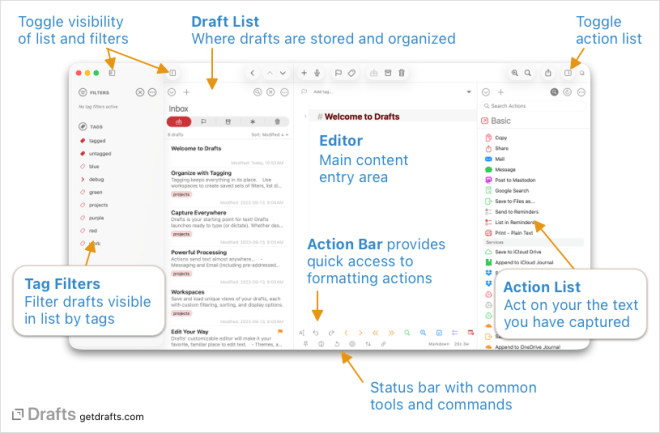
The main Drafts window is organized in three basic areas.
- Draft List (left pane) – Show/Hide:
⌘1 - Editor (middle pane)
- Tag Entry (top of Editor) – Show:
⌘ T/ Hide:⇧ ⌘ T - Main content entry area (usually Markdown)
- Action Bar (bottom of Editor) – Action group assigned to workspace
- Editor Options (very bottom of Editor) – syntax, pin, info, versions, log, arrange, link, preferences, chars / words
- Tag Entry (top of Editor) – Show:
- Action List (right pane) – Show/Hide:
⌘ 0
On macOS, Drafts also has an app window [[Drafts – Toolbar|Toolbar]], which you can toggle to show or hide with a hotkey ⌥ ⌘ T. It offers quick access to navigate & filter, create, dictate, flag, tag, or move drafts, as well as access a command palette, quick search, and preview.
macOS Screenshot
Videos
Drafts for Mac Introduction
What’s New for Drafts 5