
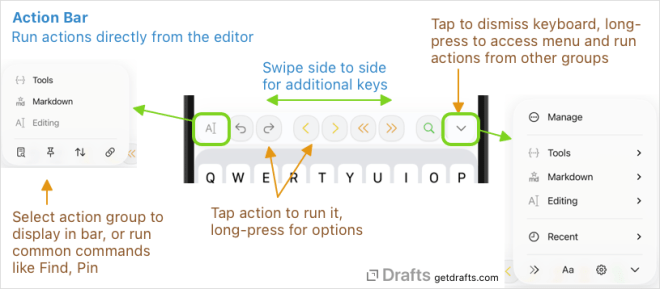
When editing, an additional row of commands is displayed above the on-screen keyboard (iOS), or below the editor (macOS), to provide quick access to actions from select action groups.
The action bar contains buttons to quickly access commonly used actions directly in the editor. Typically, this is used for actions that manipulate text in the editor, move the cursor, apply Markdown formatting, but any action can be included (like Add to Obsidian).
To make an action group available for use in the action bar, simply ensure that “Action Bar” visibility is enabled in the action group configuration of the group.
The Action groups article contains details on configuring groups, and configuring actions discussing controlling the appearance of the action in the action bar.
On the iPad, a compact version of the action bar is also available as a menu in the iPad’s keyboard shortcut bar.

Tap the arrow for a menu of actions and common commands. Use the “Select” sub-menu to change the active group.
To the left of the keyboard row is a keyboard selection icon that indicates the currently selected action group. Tapping it opens a menu, with quick access to available action groups. On iOS, it also contains command buttons at the bottom to access features like find and replace, and arrange mode (these are located in the toolbar on macOS).
To the right on iOS, a downward arrow can be tapped to quickly dismiss the keyboard – or long-pressed for a menu which allows you to browse and run any action from action bar enabled groups without loading them in the bar. Great for occasionally used actions.
Also on iOS, you can quickly switch the active action group in the action bar by swiping up or down on the keyboard row itself.
In the middle are the actions for the selected action group – simply tap one to run the action. If more actions are available than fit, the row can be scrolled side to side. My Obsidian action group fits quite nicely with only 6 actions.
If you do not use the action bar, it can be removed. On iOS, set the “Hide Action Bar” option in Editor Settings; on Mac, use Hide Action Bar in the View menu.
To avoid being a distraction, the Action bar does not use color by default, but if you prefer you can enable the display of color, and icon will display the tint color associated with their action – just as in the action list. To enable:
- iOS: Turn on “Use Color” in the Action Bar section of the
Aaeditor settings view. - Mac: Toggle “Use Color” in the Action Bar’s group selection drop-down menu.
Obsidian Action Group
See my Obsidian action group that I use for creating Obsidian notes with Drafts. I load that group in my Action List and Action Bar.