
The Drafts watch app allows for quick capture on the go, as well as the ability to browse and manage inbox drafts.
Video
Apple Watch
Main
You can launch Drafts from the app launch on the Watch. Drafts from your iPhone inbox will be synchronized to the Watch and the following features can be used from the main screen:
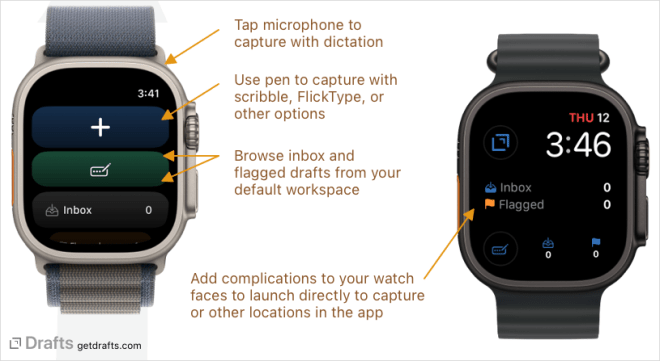
- Capture (
+button): Capture a new draft. It opens to the “scribble” handwriting interface. - Capture with Options: (pen icon): Capture with options, which includes access to the Watch scribble handwriting interface, emoji picker, and more.
- Inbox: Displays count of inbox drafts. Tapping it opens the inbox draft list. Drafts available are based on your default workspace inbox configuration.
- Flagged: Displays count of flagged drafts. Tapping it opens the flagged draft list.
Inbox
The inbox screen provides a quick list of drafts in your inbox. Tap on a draft to view its detail view. On the detail, the following commands are available:
- Flag: Toggle the flagged status of the draft.
- Add/Remove Tag: Tags can be added using dictation, scribble, or by selecting from recently used tags – or tags already assigned can be removed from the draft.
- Append/Prepend: Use to add text to the beginning or end of a draft, either by dictation – or by scribble using the pen icons.
- Archive: Move the draft to the archive.
- Trash: Move draft to the trash.
Watch Face
Drafts offers several types of watch face complications, each with its own associated function. All complication types are available for all sizes/types of complication, but may appear differently on different watch faces.
- Capture (Drafts logo): Opens directly to creating a new draft. Great for quickly capturing ideas, tasks, and other thoughts on the go. This opens to the scribble handwriting interface, and dictation can be accessed via microphone button.
- Capture with Options (pen + …): Opens to creation of a new draft with options, allowing selection of emoji, scribble, or dictation options. Great if you do not always capture via the same input method.
- Inbox: Displays your current inbox count, and opens directly to inbox drafts when tapped. The inbox drafts available are based on the filter options on your Default Workspace.
- Flagged: Displays flagged draft count, and opens directly to flagged draft list when tapped.
FlickType Keyboard
Drafts offers integration with the excellent FlickType Keyboard app for typing directly on a QWERTY-style keyboard on Apple Watch.

To use FlickType with Drafts:
- Install the FlickType watch app on your Apple Watch.
- Use any of the capture with options buttons in Drafts watch app (pen icons).
- Select “FlickType Keyboard” as the input option.
This integration works by leaving Drafts to open the FlickType app, allowing you to type text. Once complete, tap “Done” in FlickType to return the text to Drafts. Capture will not be complete if you do not complete this step.
Phone Connection
When your watch is paired and has an active connection with your iPhone, changes made on the Watch are pushed back to the phone more or less in real-time.
The Drafts watch app can be used while disconnected from the iPhone. Dictation requires a connected phone or network to work. Other changes will be stored on the watch and replayed to the phone when the devices are connected again.
Dictation
Since watchOS 8, all text input opens to the on-screen keyboard, and requires an extra tap on the microphone button to reach dictation.